View Control
The Menu for View Control.
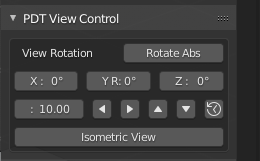
This section deals with the View Control section of PDT, this menu uses its own variables.
Rotate Absolute:
This button will rotate the view using absolute rotational values as set in the three inputs underneath.
These are X, Y & Z rotations and should be entered as degrees, not radians.
A rotation of 0,0,0 is the same as Blender Top view.
Uses: X Rot, Y Rot & Z Rot.
Example 1: Rotate view 25 in X, 17 in Y and 90 in Z, set X Rot,
Y Rot & Z Rot to 25, 17 & 90 respectively, click Rotate Abs button.
The next row of icons Orbit the view about its horizontal & vertical screen axes,
or Roll the view about its normal axis to your screen.
All of these 5 options use the Angle input from this menu.
Orbit Left:
Set Angle, click Orbit Left icon (Left Arrow), view rotates about its vertical axis.
Orbit Right:
Set Angle, click Orbit Right icon (Right Arrow), view rotates about its vertical axis.
Orbit Up:
Set Angle, click Orbit Up icon (Up Arrow), view rotates about its horizontal axis.
Orbit Down:
Set Angle, click Orbit Down icon (Down Arrow), view rotates about its horizontal axis.
Roll View:
Set angle, click Roll View icon (Roll), view rotates about its normal axis to your screen.
Isometric View:
This button sets the view orientation to what a Draughtsman understands as a true Isometric view.
This is achieved by rotating a Front view 45 degrees about its vertical axis, then 35.2644
degrees about its horizontal axis. In the system this is achieved using an Absolute View Rotation of:
Quaternion(0.8205, 0.4247, -0.1759, -0.3399)
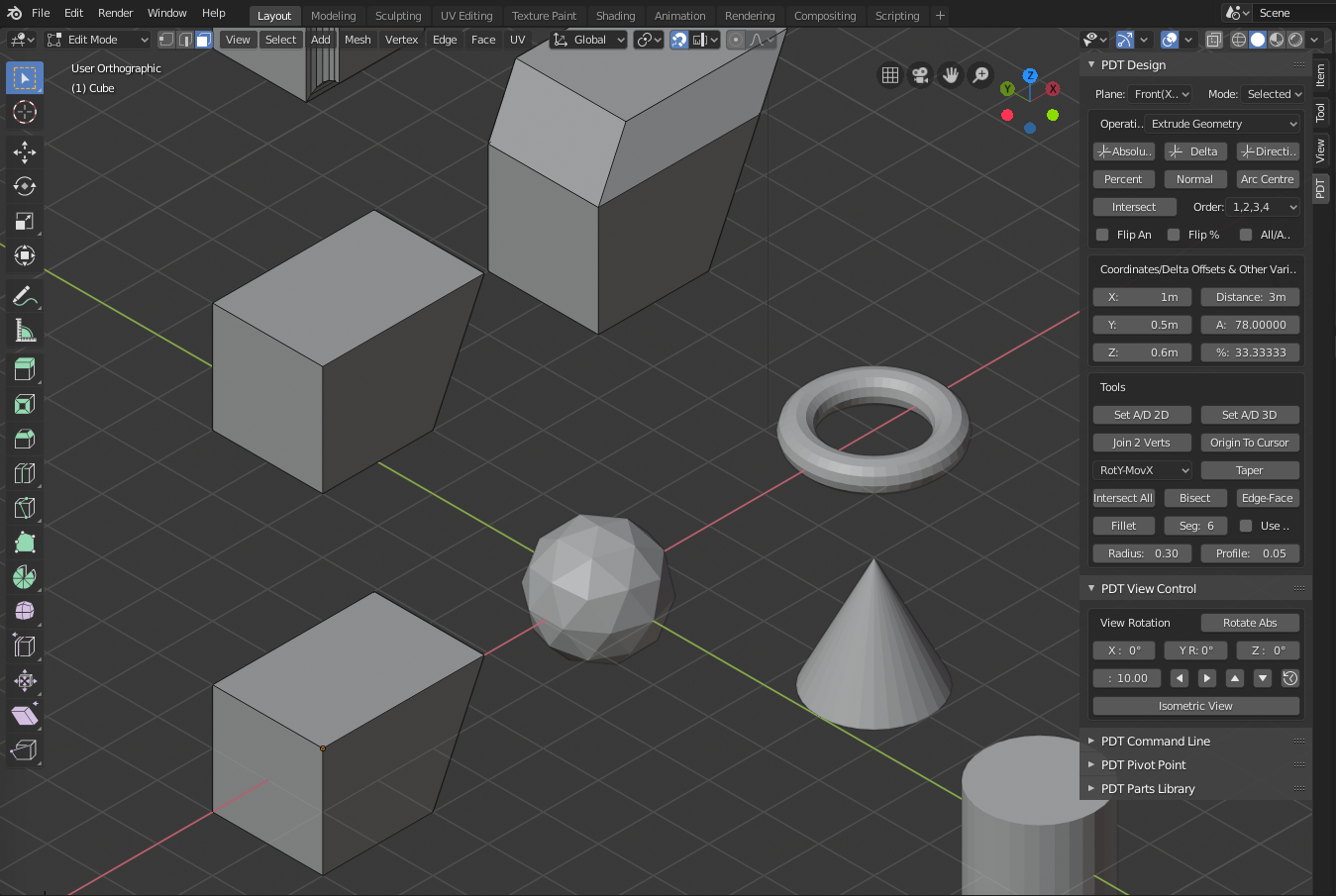
The Top Plane Axes Appear to be at 30 degrees to the View’s Horizontal Axis.